Apps & launchersReviewed
Voice Assistant Doesn't Hear You: 13 Owner Reports
Assistant or voice search opens but never hears you? Change the Mstick4 microphone mode; on TBox and UX999 fix the navigation app's assistant settings.
MGears Mstick4Carlinkit TBox PlusApplePie UX999 RocketCarlinkit TBox AmbientCarlinkit TBox UltraCarlinkit TBox Ultra 2Carlinkit TBox Ultra 3Carlinkit TBox Ultra 4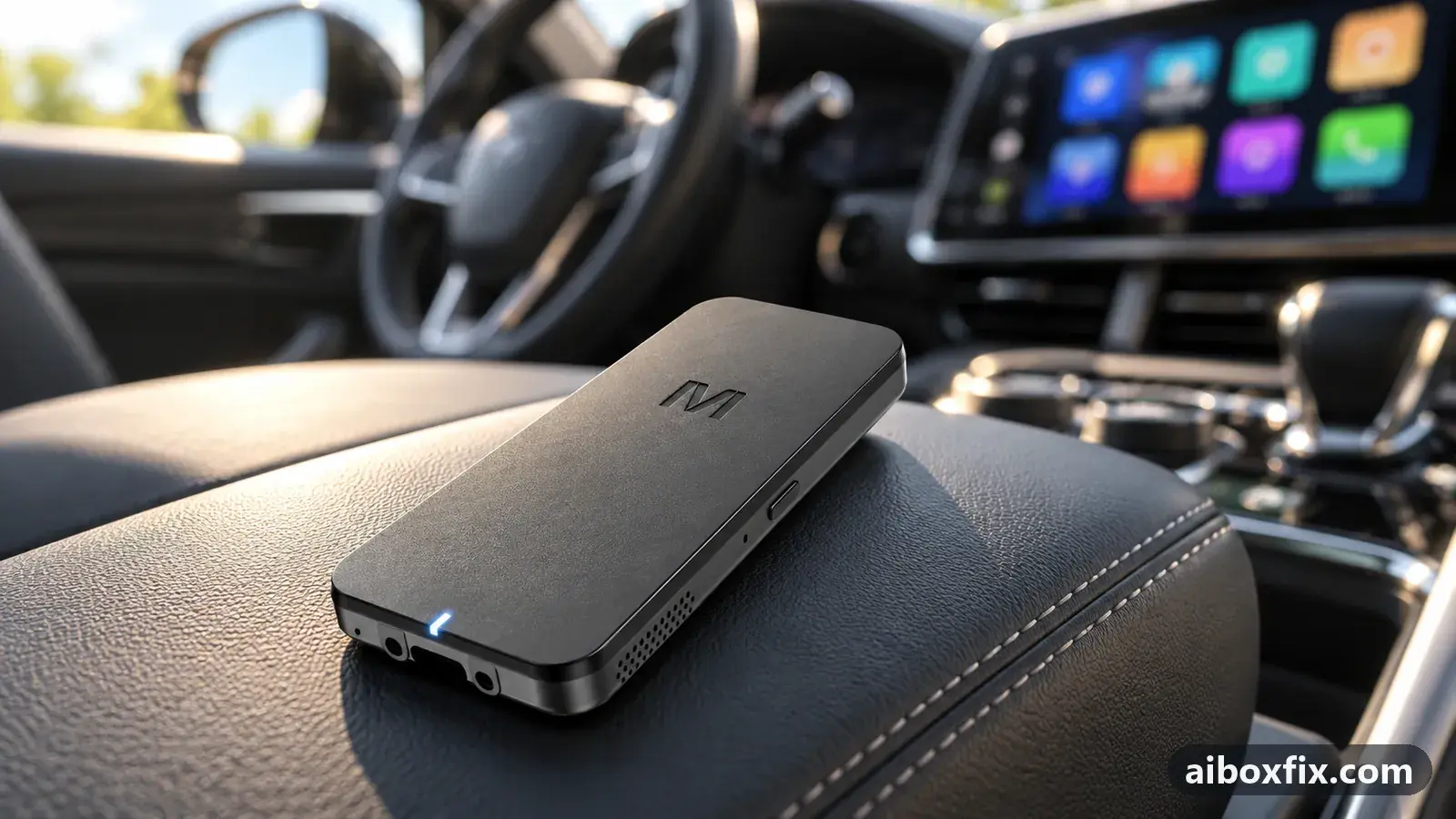
Quick answer
On the MGears Mstick4, a voice assistant that does not hear you usually works after you pick another mode under Mgears settings → Microphone and restart the stick; five owners confirmed it. On Carlinkit and ApplePie boxes, keep the navigation app's assistant on with its wake phrase off, or remove the app from the box's navigation-app setting.
Owner reports at a glance
- Owner reports of a fix that worked
- 13
- Reports with a result
- 14
- 13 worked, 1 did not help
- Most-confirmed fix
- MGears Mstick4: switch the microphone mode and restart: worked in 5 of 5 reports; all fixes, ranked
- Boxes owners confirmed it on
- MGears Mstick4, Carlinkit TBox Plus, ApplePie UX999 Rocket, Carlinkit TBox Ambient
One owner counts once per fix; reports with no result yet are not counted. Counts reviewed . How we count.
Symptoms
- You tap the microphone in the navigation app, it beeps or opens a listening window, but nothing you say is recognised
- Voice search worked after you installed the app, then stopped hearing you after a reboot
- The assistant answers on the phone or in the car's own menu, but not on the box
- On the Mstick4, music or track controls stopped after you set up a voice assistant
Applies to
- Devices
- Connection to the car
- CarPlay and Android Auto
- Head units mentioned in reports
- Haval / GWM GWM head units
- Firmware in confirmed reports
- Carlinkit TBox Ambient: 2024-01
- Highest risk on this page
- Low risk
- Status
- Workaround confirmed by the community
Why it happens
Carlinkit and ApplePie boxes have no microphone of their own. Voice input comes from the car’s microphone through the same CarPlay or Android Auto link a phone would use, so an assistant on the box can hear you only when the box hands that input to the right app. A TBox Ultra 1 owner who thought he had to buy a Bluetooth microphone got his assistants hearing him through the car’s one.
Two settings break that hand-over. A navigation app whose built-in assistant is switched off falls back to a system listening window that never gets the microphone. And the app you register as the box’s navigation app has its audio routed to the head unit’s navigation channel, which on some setups also cut off its voice input.
The MGears Mstick4 has its own microphone and two ways of using the car’s. In the standard car-microphone mode, an assistant listening for its wake phrase takes over the audio channel, so the music stops or the assistant stays deaf, depending on the car.
Fixes, ranked
MGears Mstick4: switch the microphone mode and restart
- Low risk
- Time: 10 minutes
- Worked for 5 of 5 reports
- Open Mgears settings on the stick and find Microphone. Owners describe three choices: the stick’s own microphone (top), the car’s microphone (middle, the Android Auto standard mode) and the car’s microphone in the non-standard, experimental mode (bottom).
- Note which one is selected, then pick another.
- Restart the stick.
- Test the assistant by its button and, if you use it, by its wake phrase, with music playing.
- Watch the stick’s temperature on the first drives. If it runs much hotter, try the next mode.
The mode that works depends on the car. One owner set up Google Assistant and lost both the sound and the track buttons; switching from the car’s microphone to the stick’s and rebooting brought everything back. A Haval Jolion owner chose the car’s microphone in the non-standard mode and the navigation app’s assistant answered even in split screen, with calls working and the stick about 15 °C cooler than before. A Kia Carnival owner found the same bottom mode was the only one that worked with his navigation app’s assistant; another owner had the opposite result and only the middle mode worked for him.
Heat is the trade-off with the non-standard mode on some cars. One owner had the assistant answering its wake phrase in that mode but the stick ran so hot that he went back to the car’s microphone; another saw it pass 75 °C (167 °F) until he turned the assistant’s wake phrase off. If the stick’s microphone drops out after a start, two owners revived it by switching the mode away and back, or by pressing the wheel’s voice button once. More on the stick on the MGears Mstick4 page.
Turn the navigation app's assistant on, its wake phrase off
- Low risk
- Time: 5 minutes
- Worked for 4 of 5 reports
- Open the navigation app’s settings → all settings → its voice assistant section.
- Turn the assistant itself on.
- Turn voice activation (the wake phrase) off.
- Tap the microphone button in the app’s search and say the address.
A TBox Plus owner on Android 13 had voice search working after the first install and deaf after every reboot: the button chimed but heard nothing, while his second maps app heard him fine. The assistant had been off; with it on and the wake phrase off, voice search worked. Another owner had tested the combinations on his own box the day before: with everything off, a system window opens and hears nothing; with the assistant on and its wake phrase off, voice search, addresses and weather all work.
Two TBox Ultra owners had the same deaf address search, and both fixed it by turning the navigation app’s assistant switch on. Both also turned off Force 44K audio in factory code 166888 at the same time, so if you have an Ultra with that switch on, turn it off too; it is an advanced setting, and the 44.1 kHz guide has the steps and how to undo them. Neither owner mentioned the wake phrase.
One owner whose voice search had stopped tried the same settings without success and suspected the 9 Jan 2024 firmware; he was advised to roll back and did not report again. Keeping the wake phrase off also protects your sound: see crackling or muffled sound.
Remove the navigation app from the box's navigation-app setting
- Low risk
- Time: 5 minutes
- Worked for 2 of 2 reports
- Open the box’s navigation settings. On TBox Plus, Ambient and UHD builds owners find them under Settings → Display → Navigation settings; on TBox Ultra firmware under Settings → Navigation; ApplePie boxes call it the standard navigator.
- Clear the navigation-app entry, or set a different app there.
- Restart the navigation app.
- Tap its microphone button and speak.
An ApplePie UX999 Rocket owner whose assistant ignored the button had the navigation app set as the box’s standard navigator; removing it made the assistant hear him. A Carlinkit owner saw two faults with the app in that entry: the car’s own music dipped every few seconds and voice search did not work. After removing it both seemed fine.
The entry also decides which app’s voice goes to the car’s navigation channel, so removing it can change how prompts mix with the car’s radio. Change the home-screen navigation app explains the two navigation entries, and car radio goes silent with the AI box covers the radio side.
Deaf in every app in CarPlay mode: switch the box to Android Auto
- Low risk
- Time: 10 minutes
- Worked for 2 of 2 reports
- Check that your head unit accepts wired Android Auto: an Android phone on the cable should start it.
- Switch the box to Android Auto, as described in switch between CarPlay and Android Auto.
- Open the Android Auto tile on the head unit.
- Tap a microphone button in any app and speak.
A Carlinkit TBox Ambient owner on the January 2024 firmware, in a 2016 Kia Sorento, had every app that opened the microphone (voice search, the assistant, voice dialling) wait for a voice and stop there. Permissions were in order and no navigation app with its own assistant was installed, so the two fixes above did not apply. Switching the box from CarPlay to Android Auto fixed it. A Skoda Octavia owner had the same fault with his phone paired to the head unit, found the same switch by trial and error, and reports everything working since. The owner he was answering, with the same set-up, has not reported a result yet. Other differences between the two modes on these cars are on the Kia and Hyundai page.
Things to try (unverified)
- Check the app’s microphone permission. In the box’s Settings → Apps → your navigation app → Permissions, make sure Microphone is allowed. Suggested to a TBox Ultra owner with a deaf assistant, who did not report back; a TBox Ambient owner had it allowed already and it did not help.
- Reset and reinstall the navigation app. One owner got voice search back after a factory reset and a fresh install, but lost it again as soon as he signed back in to his account, so the cause was not found.
If the assistant opens when you press the steering-wheel voice button but it is the wrong one, that is a separate setting: assign your assistant to the voice button.
If nothing works
First check that the car’s microphone reaches the box at all: make a call through the box and ask whether the other side hears you. If they do not, follow microphone not working on calls before anything else.
If calls work and the assistant still hears nothing, note the box model and firmware date (Settings → About), the car and head unit, the protocol (CarPlay or Android Auto), the navigation app and its version, and on the Mstick4 the microphone mode. Send that to the seller or the manufacturer’s support channel (Carlinkit: [email protected]); the bug report guide lists what support asks for. If voice control matters most to you and your box cannot do it, start here.
What owners said
“It was set to the car's microphone and everything had been working. I switched it to the stick and rebooted. It works now.”
Owner, Aug 2025
“Switching to the Android Auto protocol fixed it.”
Owner, Carlinkit TBox Ambient, Apr 2024
“Only yesterday I tested the different modes: for voice search, address entry, weather and so on to work, the assistant has to be on and voice activation off.”
Owner, Jan 2024
Quotes are translated where needed and shortened ([…]); names are removed. Full counts are in the evidence table below.
Questions owners ask
Do I need to buy a microphone for the box?
Usually not. Carlinkit and ApplePie boxes have no microphone and use the car's, through the same CarPlay or Android Auto link a phone would use. The MGears Mstick4 has its own microphone as well and lets you choose.
Can I keep the always-listening wake phrase?
On the Mstick4 several owners use it with the stick's microphone or the car's microphone in the non-standard mode. On Carlinkit boxes owners keep it off, because it holds the microphone and degrades the sound; start the assistant with its button instead.
Why does voice search work in one maps app and not in another?
Each app handles voice input itself. One TBox Plus owner's second maps app heard him fine while his main navigation app did not, until he changed that app's own assistant settings as in Fix 2.
Related fixes
- Microphone Not Working on Calls? Clear Every Bluetooth PairingAdvanced
- Assign the Steering-Wheel Voice Button: 6 Owner ReportsLow risk
- Crackling or Muffled Sound? Turn Off Voice-Assistant Hot-WordLow risk
- Waze Says No Internet Connection on the AI Box: Turn Off VoLTELow risk
- AI Box Fills Only Part of the Silverado or Sierra ScreenLow risk
Did this work for you?
Tell us which fix worked (or didn't), with your box, firmware date and car. Reports are how fixes get confirmed and re-ranked.
Send a reportChangelog
- Last reviewed against new community reports:
- Confirmed by 13 community reports on MGears Mstick4, Carlinkit TBox Plus, ApplePie UX999 Rocket, Carlinkit TBox Ambient.
- Page updated:
"Confirmed" means a community member reported that the fix worked on their unit. We have not tested it on our own hardware. How we verify.
Evidence behind these counts (6 cases)
One row per case: a device, a symptom and a fix, merged from owner reports. An owner counts once per fix. Reports with no outcome yet are not counted. Forum and chat message references are kept on file but not published, to protect owners' privacy; public Reddit and YouTube sources are linked.
| Case | Confirmed on | Result | Source |
|---|---|---|---|
| case-8530 | MGears Mstick4 | 5 worked | Owner discussion threads, 25 messages |
| case-8531 | Carlinkit TBox Plus | 2 worked, 1 did not | Owner discussion threads, 11 messages |
| case-8532 | ApplePie UX999 Rocket | 2 worked | Owner discussion threads, 10 messages |
| case-7360 | Model not stated | 2 worked | Owner discussion threads, 6 messages |
| case-2217 | Carlinkit TBox Ambient (2024-01) | 1 worked | Owner discussion threads, 2 messages |
| case-1895 | Model not stated | 1 worked | Owner discussion threads, 1 message |