Apps & launchersReviewed
Netflix and Other Preinstalled Apps: Hide, Disable or Remove
Uninstall or disable Netflix, Spotify, Disney+ and other preinstalled apps on a Carlinkit, ApplePie or Mstick4 AI box, or hide them with code 4545.
Carlinkit TBox PlusCarlinkit TBox AmbientApplePie UX999 UltraMGears Mstick4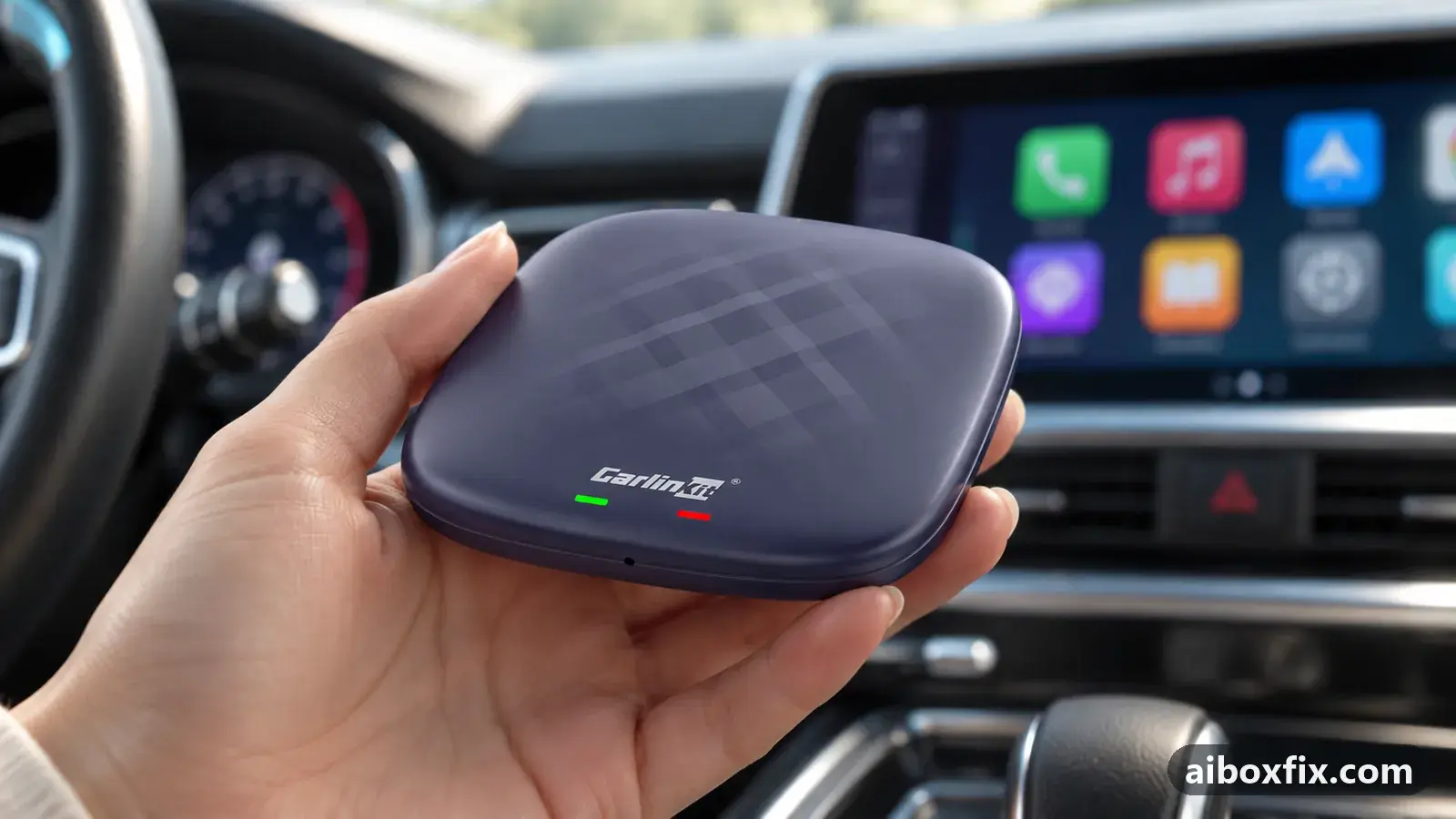
Quick answer
On a Carlinkit TBox, ApplePie UX999 Ultra or MGears Mstick4, clear Netflix, Spotify, Disney+ and other preinstalled apps from the app menu by long-pressing each icon, opening About app and tapping Uninstall, or Disable for the ones marked built-in; six owners did this with no ill effects. A firmware update can bring removed apps back.
Before you start
- A few minutes, and a list of the apps you never use (Netflix, Spotify, Disney+, Waze and the like)
- For the factory-menu route: a Carlinkit TBox (the 4545 menu is Carlinkit's; other brands do not have it)
- For the ADB route: ADB enabled on the box
Time: about 10 minutes. Tools: A computer, only if you use the ADB app-manager route (optional).
Applies to
- Devices
- Carlinkit TBox Plus
- Carlinkit TBox Ambient
- ApplePie UX999 Ultra
- MGears Mstick4
- Connection to the car
- CarPlay and Android Auto
- Highest risk on this page
- Advanced
Which apps are safe to remove
AI boxes ship with a tray of apps most owners never open: Netflix, Spotify, Disney+, Waze, YouTube and more. They take up space in the app menu and, on some boxes, sit on the home screen. You can clear them, but only the right ones.
There are two kinds of app on the box. Preinstalled apps are the streaming and navigation apps added on top of Android; these are the ones you remove or disable. System apps run the box itself, and so does the stock launcher (the home screen the box shipped with). Leave both of those alone.
The box’s manual usually says not to remove any preinstalled app at all. In practice, owners who removed the streaming and navigation apps reported no problems: one UX999 Ultra owner deleted everything the box allowed, including Google’s own extras, Netflix and Waze, with no side effects, and a TBox owner summed up the community view after removing them: “running fine.” The forum’s regulars still advise disabling rather than uninstalling when you have the choice, because a disabled app is trivial to switch back on, and they repeat one warning above all: never touch the system apps or the stock launcher. For removing the launcher by mistake, see black screen after uninstalling the launcher.
Steps
Three routes get apps out of the menu. Start with the first; it needs no tools and works on every box. The other two are for Carlinkit owners who want apps hidden without uninstalling, and for anyone whose apps refuse to uninstall.
Uninstall or disable each app from the box's own settings
- Low risk
- Time: 5 minutes
- Worked for 6 of 6 reports
- In the app list, long-press the app’s icon and tap About app; or open Settings → Apps (on a Carlinkit TBox: Settings → More → Apps or App usage).
- Tap Uninstall. If there is no Uninstall button, tap Disable instead.
- Repeat for each app you do not use.
This is the route six owners used, across a Carlinkit TBox Plus, a TBox Ambient, an ApplePie UX999 Ultra and an MGears Mstick4. On Carlinkit boxes many streaming apps uninstall outright from Settings → More → Apps; one owner removed Netflix, Disney+ and others this way after every setup. On the Mstick4, the same apps are marked built-in and only offer Disable, which still takes them out of the menu. An app that has no Uninstall button on your box is normal; disable it and move on.
A few owners and the forum’s regulars reported trouble uninstalling some apps from Settings and prefer disabling across the board, so if an uninstall misbehaves, disable instead. One owner found a single app, YouTube Music, that would not uninstall on a Carlinkit box and had to be disabled. None of this needs the engineering menu or a computer.
Hide apps with the Carlinkit factory menu (code 4545)
- Advanced
- Time: 5 minutes
- Worked for 2 of 2 reports
Warranty warning: this uses developer or engineering access. Follow the undo steps afterwards; some sellers refuse warranty claims on units with debugging left enabled.
- Open Settings, scroll to the bottom and tap Other, then Factory settings.
- Enter the engineering code 4545 to reach the factory menu.
- Open the Blacklist tab at the top.
- Move the slider off for each app you want gone; it leaves the app menu and the home screen.
Two Carlinkit owners used this. One switched off the apps he did not want and watched YouTube, Netflix and the rest vanish from the screen (a maps tile on the home screen stayed, which the plain navigation settings handle separately). Another disabled about fifteen preinstalled apps this way so they take no room in the menu. This route is marked Advanced only because it uses an engineering code; the engineering codes reference lists what each code does.
One limit to know: the 4545 Blacklist hides, it does not uninstall. The apps leave the box’s menu and home screen, but they still appear in Android’s own app list under Settings, as one owner pointed out. If you want them gone from that list too, uninstall them with the first route instead.
Disable apps over ADB
- Advanced
- Time: 15 minutes
- Worked for 1 of 1 report
Warranty warning: this uses developer or engineering access. Follow the undo steps afterwards; some sellers refuse warranty claims on units with debugging left enabled.
-
Enable ADB on the box and connect to it (over Wi-Fi, or by cable after the box’s ADB mode). The ADB cheat sheet covers the connection.
-
Disable each app by its package name:
pm disable-user --user 0 PACKAGE_NAME -
Or run a desktop ADB app-manager (owners use AdbAppControl), pick the box, and toggle each unwanted app off. It lists every app by its visible name, so you do not have to look up package names, and you re-enable an app the same way.
One owner disabled nine to ten preinstalled apps on his TBox Ambient this way, naming Waze, Spotify, Netflix and others, and uses the desktop app-manager to make it point-and-click. He is also the regular who advises disabling over uninstalling and never touching the system apps or the stock launcher. Use this route if the first one leaves an app you cannot remove, or if you want everything switched off from one place; the result is the same as a Disable in the app settings.
Verify it worked
Open the app menu and confirm the apps you removed or disabled are gone. On a Carlinkit box, if you used the 4545 Blacklist, also open Settings → Apps and note that hidden apps still appear there; that is expected.
Then drive once as you normally would. Owners who removed the streaming and navigation apps reported the box connected and ran as before, and one Mstick4 owner cleared apps as part of trimming background load with no connection problems afterward. If the car connection or the launcher misbehaves after you removed something, you most likely touched a system app or the launcher; re-enable it or reset.
Undo / rollback
- An app you disabled: switch it back on from the same screen you used (the app’s About page, the 4545 Blacklist, or the ADB app-manager).
- An app you uninstalled: reinstall it from the Play Store if it is there, or do a factory reset to return every preinstalled app to the shipped set.
- After a firmware update: removed apps can reappear, and tiles can return to the home screen. On an ApplePie box, one build briefly left Netflix and Disney+ stuck on the home screen; a later build corrected it. Clear them again with the same route you used before.
Troubleshooting this guide
An app has no Uninstall button. It is marked built-in. Tap Disable instead; it leaves the menu the same way. This is common on MGears and Ottocast boxes, and on Ottocast there is no 4545 factory menu, so Disable (route one) or ADB (route three) is the way.
The box warns that disabling a built-in app will cause glitches. That warning appears on every built-in app. Owners disabled the streaming and navigation apps past it without trouble; the apps that actually matter to the box are the system apps and the launcher, which you should not be disabling. If you are unsure whether an app is one of those, leave it.
You removed something and the box misbehaves. Re-enable it, or factory reset to the shipped state. The safe set to remove is the streaming and navigation apps you recognise; anything you do not recognise is better left alone.
Hidden apps still show in the Android app list. The 4545 Blacklist only hides apps from the box’s own menu. To take them out of Settings → Apps as well, uninstall them with route one.
If removing apps was meant to cool a hot box or speed it up and it did not, the clutter was not the cause; look up the specific symptom on the apps and launcher fixes, or start from which fix do I need.
What owners said
“Done. In the engineering menu (the one with code 4545) I flipped the toggles of the apps I don't want to see on screen. Everything I wanted gone disappeared (YouTube, Netflix etc.), but the maps stayed.”
Owner, Aug 2025
“Disable it over ADB […] with the command pm disable-user […] On my Ambient that comes to 9–10 disabled: Waze, Spotify, Netflix and others.”
Owner, Carlinkit TBox Ambient, Aug 2024
“On my TBox Plus I uninstall through More – Apps (or App usage). No problems either. Every time after a factory reset I removed Netflix, Disney and so on; it uninstalled very quickly, as usual.”
Owner, Carlinkit TBox Plus, Jan 2024
Quotes are translated where needed and shortened ([…]); names are removed. Full counts are in the evidence table below.
Questions owners ask
Will removing preinstalled apps break the box?
Owners who removed apps like Netflix, Disney+ and Waze reported no ill effects, and removing them will not brick the box. The rule is to touch only the preinstalled apps you can see in the menu, never the hidden system apps or the stock launcher.
Why won't Netflix or Spotify uninstall on my box?
Some apps are marked built-in and have no Uninstall button, only Disable. That is normal on MGears and Ottocast boxes in particular. Disable them instead; they leave the menu the same way.
Do the apps come back later?
A firmware update can reinstall them, and one Carlinkit owner found a factory reset brought them back too, so he removed them again each time. Removing them is quick to repeat.
Does the factory-menu 4545 blacklist delete the apps?
No. The 4545 Blacklist only hides apps from the app menu and home screen. They still appear in Android's own app list under Settings.
Related fixes
Did this work for you?
Tell us which fix worked (or didn't), with your box, firmware date and car. Reports are how fixes get confirmed and re-ranked.
Send a reportChangelog
- Last reviewed against new community reports:
- Confirmed by 9 community reports on Carlinkit TBox Plus, Carlinkit TBox Ambient, ApplePie UX999 Ultra, MGears Mstick4.
- Page updated:
"Confirmed" means a community member reported that the fix worked on their unit. We have not tested it on our own hardware. How we verify.
Evidence behind these counts (3 cases)
One row per case: a device, a symptom and a fix, merged from owner reports. An owner counts once per fix. Reports with no outcome yet are not counted. Forum and chat message references are kept on file but not published, to protect owners' privacy; public Reddit and YouTube sources are linked.
| Case | Confirmed on | Result | Source |
|---|---|---|---|
| case-1684 | Carlinkit TBox Plus; Carlinkit TBox Ambient; ApplePie UX999 Ultra; MGears Mstick4 | 6 worked | Owner discussion threads, 11 messages |
| case-1685 | Carlinkit TBox Ambient | 2 worked | Owner discussion threads, 4 messages |
| case-1686 | Carlinkit TBox Ambient | 1 worked | Owner discussion threads, 5 messages |