Power & connectionReviewed
Left the AI Box for the Car's Menu and Can't Get Back In
AI box stuck on the car's menu and won't return? Tap its CarPlay or Android Auto tile, or switch protocol. Carlinkit TBox Plus, Ambient, Ultra.
Carlinkit TBox PlusCarlinkit TBox AmbientCarlinkit TBox UltraCarlinkit TBox Ultra 3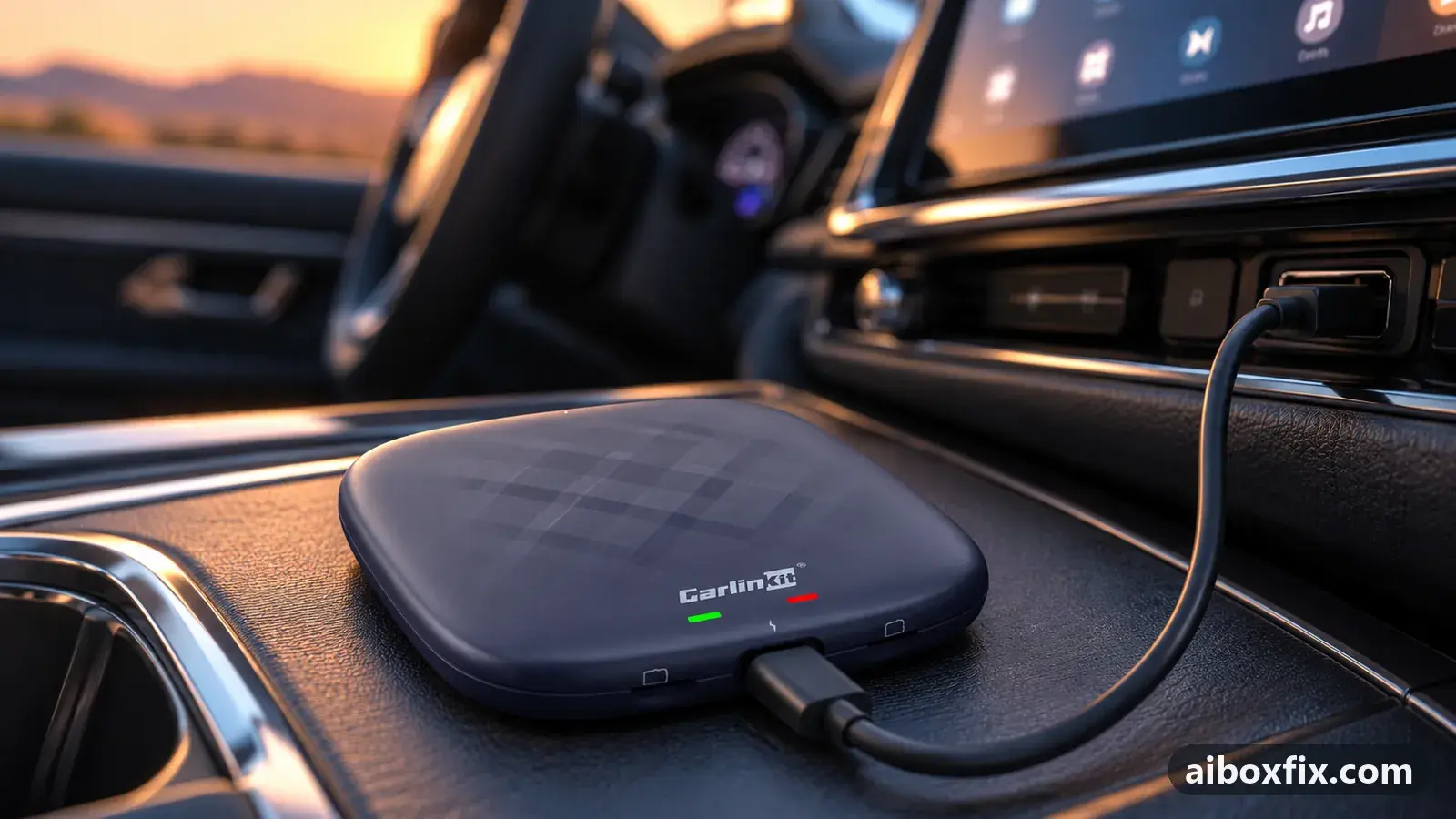
Quick answer
When your Carlinkit TBox leaves for the car's own menu and will not come back, tap its CarPlay or Android Auto tile on the head unit to return instead of replugging the cable; if that tile is greyed out, switch the box to the other protocol. Four owners confirmed these workarounds on TBox Plus, Ambient and Ultra boxes.
Symptoms
- You open the car's own menu (climate, settings, a camera) and the box's screen will not come back on its own
- The box returns as a black screen with sound, and only replugging the cable restores the picture
- The CarPlay or Android Auto tile on the head unit is greyed out and will not reopen the box
- It happens in one protocol but not the other: the box re-enters in CarPlay but not Android Auto, or the reverse
- A phone on the same cable leaves for the car's menu and returns normally, but the box does not
Applies to
- Connection to the car
- CarPlay and Android Auto
- Head units mentioned in reports
- Jetour Jetour head units
- Highest risk on this page
- Low risk
- Status
- Workaround confirmed by the community
Why it happens
The box is a separate Android computer that reaches your screen only as a CarPlay or Android Auto session. When you open the car’s own menu, the head unit drops that session to show its native screen. Getting back means the head unit has to hand the screen to the box again.
On many cars it still does: you tap the CarPlay or Android Auto tile and the box returns. On others the head unit lets go of the session and never offers it back, so the tile greys out, the box runs on with sound but no picture, and the only thing that re-triggers it is replugging the cable. Whether the session survives depends on the car and the box’s firmware, and it often differs between the two protocols on the same car.
That is why there is no single fix. The steps below are the ways owners got back in without crawling under the dashboard, ordered by how many reported them working.
Fixes, ranked
Re-enter from the box's tile, and switch protocol if it greys out
- Low risk
- Time: 2 minutes
- Worked for 2 of 2 reports
- When the car’s own menu is showing, open the head unit’s app or source list and find the CarPlay or Android Auto tile for the box.
- Tap it to return to the box’s screen.
- If that tile is greyed out and will not open, switch the box to the other protocol with the method for your model (see switch the box’s protocol), then use that tile instead.
- Keep the box on whichever protocol re-enters reliably on your car.
Which protocol survives the trip to the car’s menu is not the same on every car. A Jetour Dashing owner with a TBox Ultra 1 could leave for the head-unit menu and tap the tile to come back in CarPlay, while in Android Auto the box left but the tile greyed out and would not re-enter. For that car, staying in CarPlay is the answer. A Tenet T7 owner with a TBox Ultra 3 had the opposite set-up working: the box did not return on its own, but tapping the Android Auto icon brought it straight back.
Try the other protocol before you treat this as unfixable. Most head units show the box as either a CarPlay or an Android Auto device, never both at once, and they can treat the two sessions differently; the one that greys out on your car may well be the one that stays active on someone else’s.
Restart only the connection with the box's floating button
- Low risk
- Time: 2 minutes
- Worked for 1 of 1 report
- Make sure the box’s stock floating button is switched on — the small round button that stays on top of the car’s menu. If you hid it, turn it back on in the launcher settings.
- When you come back from the car’s menu to a black screen with sound, tap the floating button to open its small menu.
- Tap the crossed-out display icon, which restarts the connection. This is not the full reboot: you are restarting only the link to the car, not the whole box.
- Wait about 18 seconds for the box’s screen to come back.
One owner running a TBox Plus found this after his box kept coming back as a black screen with sound whenever he returned from the car’s menu, with replugging the only way out. The crossed-out display icon on the stock floating button restarted the connection, and the picture returned in about 18 seconds every time, which he found acceptable as a one-tap habit.
This is a reason to keep the floating button rather than hide it. If you removed it for a cleaner screen, the trade-off is losing this one-tap reconnect; see remove the navigation bar and floating button for how to bring it back. If you would rather restart the whole box from an app instead, restart the AI box without unplugging it covers that.
Add a floating back-button app that jumps into the box
- Low risk
- Time: 10 minutes
- Worked for 1 of 1 report
- On the box, install a floating back-button app — a small on-screen button that stays on top of other apps.
- Give it the draw-over-other-apps permission so the button shows while the car’s menu is open.
- In the app, set a double tap to launch Android Auto (or CarPlay, whichever protocol your box runs on this car).
- When the car’s menu is showing, double-tap the floating button to drop back into the box.
A Jetour Dashing owner with a TBox Ambient had no way back into the box at all once he opened the head-unit menu, with a restart the only route. He installed a floating back-button app, set its double tap to launch Android Auto, and two taps now return him to the box. The same owner noted the protocol pattern on another car, a Haval Jolion: there the CarPlay tile greyed out after the car’s menu and the box had to be restarted, while in Android Auto the tile stayed active and brought him back — the same split described in the first fix.
This route needs the box to allow installing apps and granting the overlay permission. It is the fallback for cars where neither the tile nor a floating reconnect button brings the box back on its own.
Things to try (unverified)
- Android Auto that greys out and comes back for nothing. Several owners on Jetour cars (a Dashing and an X70 Plus, on TBox Ultra 2 boxes) reported that in Android Auto the box leaves for the car’s menu and the tile goes dead, with no setting or firmware they tried bringing it back, while a phone on Android Auto on the same car returns normally. That points to the box’s Android Auto session on those cars, not the head unit. Until a fix is found, CarPlay is the protocol that re-enters for them.
- Roll back the firmware if a new build broke it. A TBox Ultra 3 owner’s box returned from the car’s menu by itself on an older build and needed a manual tap on the tile after a newer one. If your box stopped returning after an update, ask the manufacturer’s support channel for the previous build for your exact model and install it as a local update. Nobody has reported this as a cure yet.
- Leave the box through the head unit’s own “Car” app, not the steering-wheel Back button. On one head unit that runs projection apps, an owner said that leaving the box with the wheel’s Back button needed a replug to return, while leaving through the “Car” app in the app list let him come back normally. It was advice from an owner who runs that set-up, with another owner reporting the same symptom; no one confirmed the result.
- Boxes behind a protocol converter. If your box runs through a dealer or aftermarket adapter that converts the car’s own projection protocol to CarPlay or Android Auto, the adapter adds its own session that can fail to hand back. Owners with such set-ups were pointed to the adapter app’s advanced settings (changing its renderer) or to a separate receiver app; this is suggestion only, not a confirmed fix.
If the box is not seen at all after you start the car, that is a different problem; see car doesn’t detect the AI box.
If nothing works
Write down the box model and firmware date (Settings → About), the car’s make, model and year and its head unit, the protocol the box is in, exactly which car menu you opened (climate, a camera, settings) and how you left it, and whether sound kept playing while the screen was black. A short video from opening the car’s menu to the failed return is the most useful thing you can send.
Test once with a phone connected by the same cable in the same protocol: leave for the car’s menu and come back. If the phone returns and the box does not, the box’s projection session is where the fault is, and the manufacturer’s support channel should see the video. If replacement is on your mind, start here explains how the box families differ.
What owners said
“My box doesn't come back; the head unit menu stays up. I have to tap the Android Auto icon by hand to return to the box's interface. Tenet T7 + Ultra 3 on the July firmware.”
Owner, Carlinkit TBox Ultra 3, Aug 2026
“On the Jetour Dashing there's no way to go into the head unit and back into the box. I had to install a back-button app and set its double tap to launch Android Auto, and it works.”
Owner, May 2026
“Found a way not to replug the cable: restart the box's connection with the button. […] Tap the crossed-out display icon on the stock floating button. Over many tries the restart took 18 seconds, acceptable.”
Owner, Carlinkit TBox Plus, Aug 2025
Quotes are translated where needed and shortened ([…]); names are removed. Full counts are in the evidence table below.
Questions owners ask
Do I have to unplug the box every time?
No. On most cars you can tap the box's CarPlay or Android Auto tile on the head unit to return, or use the box's floating button to restart only the connection, which took about 18 seconds for one owner. Replugging the cable is the last resort, not the first.
Why does it come back in CarPlay but not Android Auto, or the other way round?
The protocol that stays active after you leave the car's menu differs by car and firmware. One owner's box re-entered in CarPlay while the Android Auto tile greyed out; another owner saw the reverse. Switch the box to the protocol that stays active on your car.
It used to return by itself and now it doesn't. What changed?
A firmware change can cause this. One TBox Ultra 3 owner's box returned automatically on an older build and needed a manual tap on the tile after a newer one. Ask the manufacturer for the previous build if a new one broke it.
If none of these fixes work
Try every free fix above first. Each of these needs a car whose screen already runs wired CarPlay or Android Auto. We have not tested them: check the seller's compatibility list for your car and head unit, and that the listing shows the exact model named here, before you buy.
Wireless CarPlay / Android Auto adapter (Carlinkit Mini Ultra 3)
If you only use the box to get CarPlay or Android Auto without a cable, a plain wireless adapter has no Android system to update, overheat or crash.
Replacement AI box (Carlinkit, Android 13, SM6225)
If the box is out of warranty and still fails after the fixes above, another Carlinkit box keeps your apps on the car screen. It needs wired CarPlay or Android Auto in the car. Pick the NA variant for North American cars, EAU elsewhere.
Replacement from another maker (Ottocast P3 Pro)
If you would rather switch brands, Ottocast's P3 Pro runs Android 13 and has HDMI out. It needs the connection protocol Ottocast lists for your car. The listing opens on a cheaper Mini adapter: select the P3 Pro option and check the picture and name before you pay.
Affiliate links: we may earn a commission at no extra cost to you. Disclosure.
Related fixes
- Head Unit Shows Only CarPlay? Switch the Box's ProtocolAdvanced
- Restart the AI Box Without Unplugging ItLow risk
- Remove the Navigation Bar and Floating Button: 10 Owner ReportsAdvanced
- Car Doesn't Detect the AI Box: 13 Owner ReportsAdvanced
- Head Unit Stays On After Engine Off With an Extra-Power CableLow risk
Did this work for you?
Tell us which fix worked (or didn't), with your box, firmware date and car. Reports are how fixes get confirmed and re-ranked.
Send a reportChangelog
- Last reviewed against new community reports:
- Confirmed by 4 community reports on Carlinkit TBox Ultra, Carlinkit TBox Ultra 3, Carlinkit TBox Plus, Carlinkit TBox Ambient.
- Page updated:
"Confirmed" means a community member reported that the fix worked on their unit. We have not tested it on our own hardware. How we verify.
Evidence behind these counts (3 cases)
One row per case: a device, a symptom and a fix, merged from owner reports. An owner counts once per fix. Reports with no outcome yet are not counted. Forum and chat message references are kept on file but not published, to protect owners' privacy; public Reddit and YouTube sources are linked.
| Case | Confirmed on | Result | Source |
|---|---|---|---|
| case-1624 | Carlinkit TBox Plus | 1 worked | Owner discussion threads, 3 messages |
| case-1625 | Carlinkit TBox Ambient | 1 worked | Owner discussion threads, 1 message |
| case-1626 | Carlinkit TBox Ultra; Carlinkit TBox Ultra 3 | 2 worked | Owner discussion threads, 2 messages |