Apps & launchersReviewed
Carlinkit Home Screen Widgets Gone? Switch Style 1 or Style 2
Carlinkit TBox home-screen widgets gone or down to plain icons? Switch between Style 1 and Style 2 in the box settings, then reboot the box.
Carlinkit TBox Plus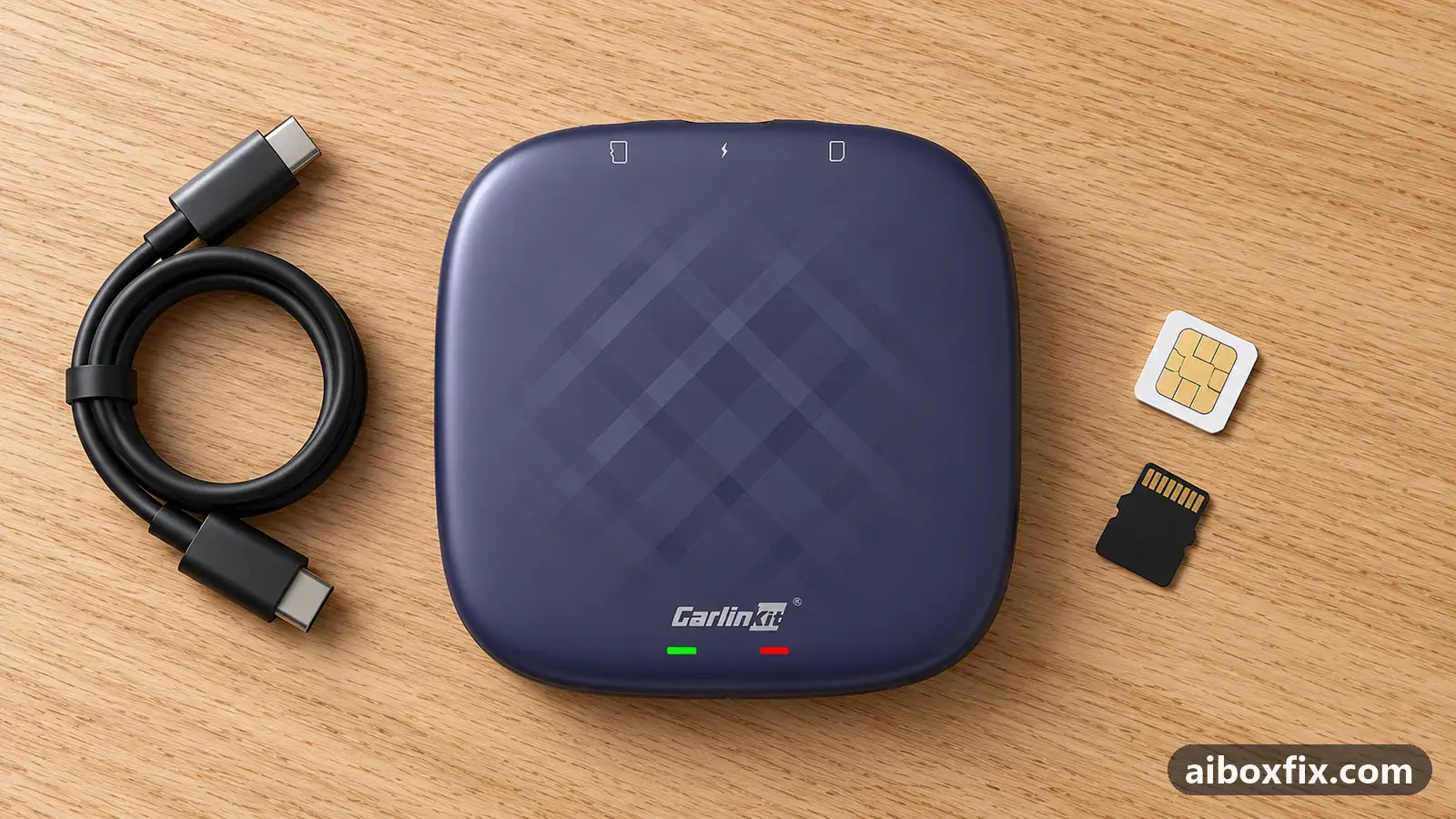
Quick answer
On a Carlinkit TBox Plus, when the stock home screen's navigation and music widgets vanish and leave a plain grid of icons, switch the home-screen Style between Style 1 and Style 2 in the box's own settings, then reboot the box if the switch does not apply at once. Two TBox Plus owners confirmed this.
Symptoms
- The stock home screen that showed a map, a music widget and a clock is now a plain grid of app icons
- The home-screen layout changed by itself after a reboot or a firmware update
- You switched the style setting once and the screen seemed not to change
- You want the box's own home screen back at start-up, with its widgets
Applies to
- Devices
- Connection to the car
- CarPlay and Android Auto
- Highest risk on this page
- Low risk
- Status
- Workaround confirmed by the community
Why it happens
The stock launcher on the Carlinkit TBox has two home-screen layouts, named Style 1 and Style 2 in the box’s own settings. Style 2 is the widget desktop: a large map pane on the left, a music widget and a clock. Style 1 is a plain screen of app icons with no widgets.
When the box lands on Style 1 — after a firmware update, a reboot, or a tap in the settings — the widget desktop looks gone. Nothing was deleted. The launcher is drawing the other layout, and selecting the style you want brings the widgets back.
If the widget desktop is there but shows Google Maps where you want a different navigator, that is a separate setting, not the style; see replace the home-screen navigation app.
Fixes, ranked
Switch the home-screen style, then reboot
- Low risk
- Time: 2 minutes
- Worked for 2 of 2 reports
- On the stock home screen, open the box’s own settings from the gear icon. This is the box’s settings, not Android’s Settings app.
- Find the home-screen Style option and note which style is active.
- Switch to the other style. Style 2 is the widget desktop; Style 1 is the plain icon screen.
- If the screen does not change at once, reboot the box and check again.
One owner’s widget home screen had disappeared, and switching the style at first seemed to do nothing. He was in fact already on Style 1; once he selected Style 2 and rebooted, the widget desktop came back. A second TBox Plus owner, who wanted the box’s own home screen at start-up, found the same Style 1 / Style 2 option in the box settings — not in Android — and it set his layout right too. Both owners confirmed the result on a TBox Plus.
Owners did not agree on the exact submenu that holds the setting, only that it sits in the box’s gear settings rather than in Android’s. If it is not on the first screen, read through the box settings for a Style or home-screen view option.
Things to try (unverified)
- If there is no Style option at all, you are probably looking at a third-party launcher such as CarCar or Agama, which carry their own layout settings instead. To bring the stock launcher back at start-up, see launcher or app doesn’t open when the box starts. No owner reported the Style option being absent, so this is a guess from how the launchers differ.
- If the home screen is black, not a plain icon grid, that is a different fault, usually after a launcher was removed; see black screen after uninstalling a launcher.
If nothing works
Note the box model and firmware date (Settings → About), whether you run the stock launcher or a third-party one, and what the home screen shows now. If the Style setting does nothing even after a reboot, the maker’s support ([email protected] or the form at https://www.carlinkit.com/messages.html) can confirm where the option sits on your firmware. If the box is otherwise unusable, start here.
What owners said
“Thanks, it all worked.”
Owner, Carlinkit TBox Plus, Nov 2023
Quotes are translated where needed and shortened ([…]); names are removed. Full counts are in the evidence table below.
Questions owners ask
What is the difference between Style 1 and Style 2?
Style 2 is the widget desktop with the map, music and clock panes. Style 1 is a plain screen of app icons. The setting changes only the stock launcher's layout, not your apps or your data.
I switched the style and nothing changed. What now?
Reboot the box and look again. One owner reported the new style took effect only after a restart. If the Style option is missing, you are probably in a third-party launcher, not the stock one.
Where is the Style option, in Android settings?
No. It is in the box's own settings, opened from the gear icon on the stock home screen, not in Android's Settings app. Owners did not name one exact submenu, so look through the box settings for a Style or home-screen view option.
Did this delete my widgets or apps?
No. The widgets belong to Style 2 and come back when you select it. The two styles are two layouts of the same launcher; nothing is removed.
Related fixes
Did this work for you?
Tell us which fix worked (or didn't), with your box, firmware date and car. Reports are how fixes get confirmed and re-ranked.
Send a reportChangelog
- Last reviewed against new community reports:
- Confirmed by 2 community reports on Carlinkit TBox Plus.
- Page updated:
"Confirmed" means a community member reported that the fix worked on their unit. We have not tested it on our own hardware. How we verify.
Evidence behind these counts (1 case)
One row per case: a device, a symptom and a fix, merged from owner reports. An owner counts once per fix. Reports with no outcome yet are not counted. Forum and chat message references are kept on file but not published, to protect owners' privacy; public Reddit and YouTube sources are linked.
| Case | Confirmed on | Result | Source |
|---|---|---|---|
| case-1227 | Carlinkit TBox Plus | 2 worked | Owner discussion threads, 2 messages |