Power & connectionReviewed
AutoKit Stuck on "Waiting for Phone": Use the 5 GHz Hotspot
AutoKit on your box waits for the phone forever or pairs and drops it? Put the box's hotspot on 5 GHz and make sure it is on. TBox Ambient, Ultra 2, Plus.
Carlinkit TBox AmbientCarlinkit TBox Ultra 2Carlinkit TBox Plus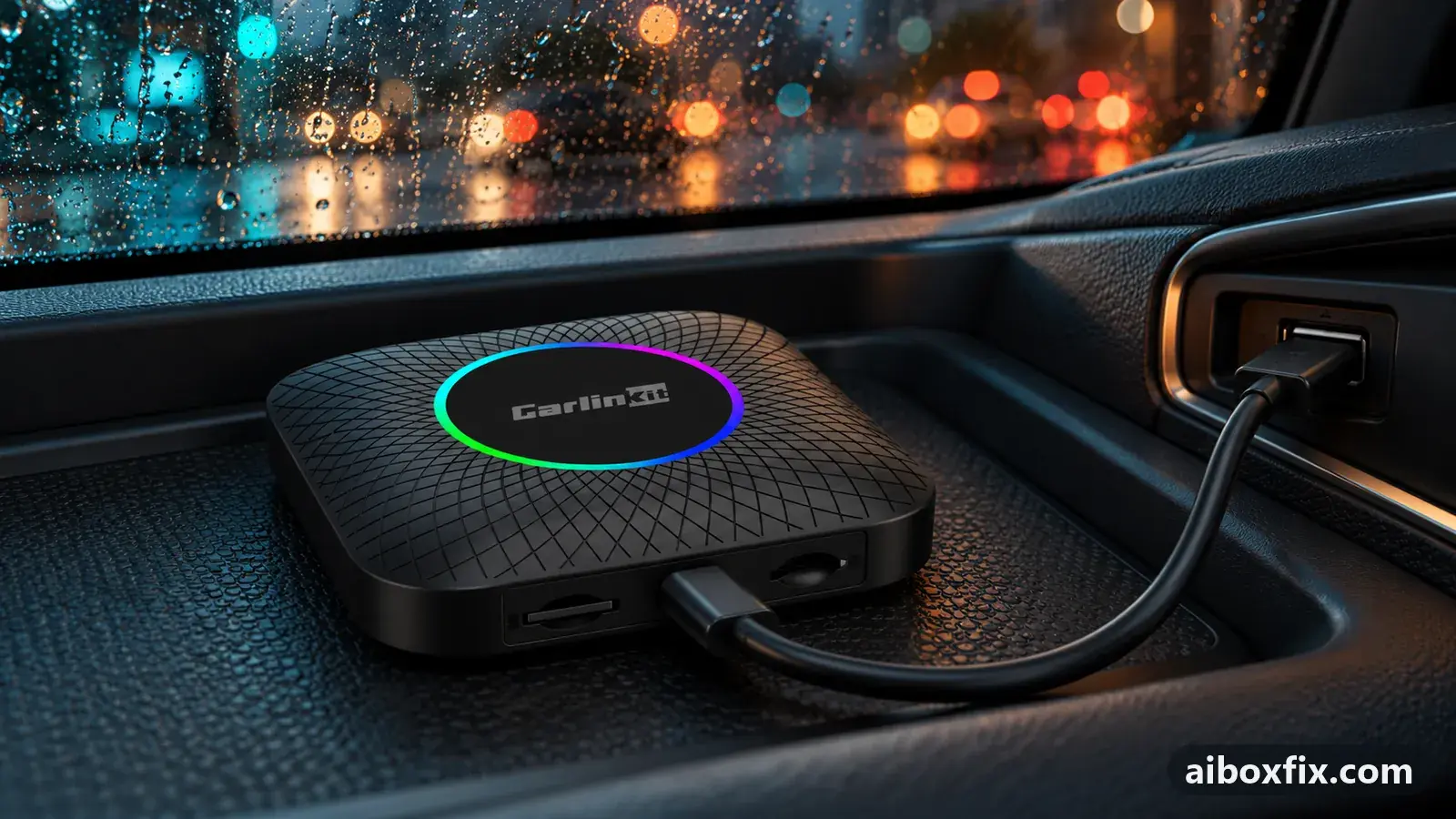
Quick answer
On a Carlinkit TBox Ambient or TBox Ultra 2, AutoKit stuck on "waiting for phone" connected once owners set the box's Wi-Fi hotspot band to 5 GHz (2 of 2 reports). On a TBox Plus updated to Android 13, 2.4 GHz worked instead (2 of 2). If the hotspot is off after start-up, switch it on by hand.
Symptoms
- AutoKit on the box shows its waiting-for-phone screen and never gets past it
- The phone says Android Auto has started, but nothing appears on the box
- Pairing seems to go through, then AutoKit falls back to waiting
- It connects the first time each day, but not after you walk away with the phone and come back
- It worked before a firmware update and stopped after it
Applies to
- Connection to the car
- CarPlay and Android Auto
- Firmware in confirmed reports
- Carlinkit TBox Ambient: 2024-01-26; Carlinkit TBox Ambient: 2025-07
- Highest risk on this page
- Advanced
- Status
- Workaround confirmed by the community
Why it happens
When you open AutoKit, the phone and the box first find each other over Bluetooth. The Bluetooth link only starts the session: the phone’s Android Auto or CarPlay picture then travels over Wi-Fi, through the hotspot the box creates. If the phone cannot join that hotspot, AutoKit stays on its waiting screen, or the Bluetooth part completes and the session falls back to waiting.
Three things stop the phone from joining. The hotspot is on the 2.4 GHz band, which wireless Android Auto and CarPlay are not built for. The hotspot is not on at all, because the box did not start it after boot or because its Wi-Fi client joined another network instead. Or the hotspot picked a channel the phone does not support.
The Carlinkit TBox Plus after its Android 13 update is the exception to the first point. Owners traced a waiting screen on every start after the first to an AutoKit bug in that firmware, and on that box the 2.4 GHz band is the one that connected.
Fixes, ranked
Put the box's hotspot on 5 GHz
- Low risk
- Time: 5 minutes
- Worked for 2 of 2 reports
- On the box, open Settings → Network & internet → Hotspot & tethering → Wi-Fi hotspot.
- Set AP band to 5 GHz.
- On the phone, update Android Auto from Google Play if an update is waiting.
- Open AutoKit on the box and connect the phone again.
A TBox Ambient owner who could not get past AutoKit’s waiting screen, after trying every suggestion he had found, changed the band from 2.4 to 5 GHz and updated Android Auto on the phone at the same time; after that it worked. A TBox Ultra 2 owner whose Android Auto pairing kept returning to “waiting for connection” heard from another owner that switching the box’s router mode to 5 GHz had fixed the same thing for him that day.
Both reports are from a TBox Ambient and a TBox Ultra 2. On a TBox Plus running Android 13 the result ran the other way; see the 2.4 GHz fix below before you change the band on that box.
Switch the hotspot on by hand if it is off
- Low risk
- Time: 1 minute
- Worked for 2 of 2 reports
- Pull down the box’s quick settings, or open Settings → Network & internet → Hotspot & tethering.
- Turn the Wi-Fi hotspot on.
- Open AutoKit and connect the phone.
After the 26 Jan 2024 firmware, two TBox Ambient owners found the hotspot no longer started by itself, so the phone’s wireless Android Auto never reached the box and the phone only told them to continue on the car screen. With the hotspot switched on by hand, both connected. To have it come up on its own after every start, see turn on the box’s hotspot automatically at boot.
TBox Plus on Android 13: move the hotspot to 2.4 GHz
- Low risk
- Time: 5 minutes
- Worked for 2 of 2 reports
- On the box, open Settings → Network & internet → Hotspot & tethering → Wi-Fi hotspot.
- Set AP band to 2.4 GHz.
- Open AutoKit on the box and connect the phone again.
After the Android 13 update, TBox Plus owners found the phone’s Android Auto came through AutoKit once and then stopped at “connecting” followed by “waiting” on every later start, while the phone itself said it was connected. One owner who had the same fault turned the 5 GHz hotspot off and 2.4 GHz on, and it connected; a second owner did the same and reported the problem solved.
This is the opposite of the first fix, and the box model is what separates them: 5 GHz is confirmed on the TBox Ambient and TBox Ultra 2 (2 of 2), 2.4 GHz on the TBox Plus with Android 13 (2 of 2). The first of the two owners called it a fix “for now”, and another owner had warned that the Android 13 firmware carried an AutoKit bug Carlinkit meant to fix in a later build, so try 5 GHz again after a firmware update.
Turn the box's Wi-Fi off so it always makes its own hotspot
- Low risk
- Time: 2 minutes
- Worked for 1 of 1 report
- On the box, open Settings → Network & internet → Wi-Fi and turn Wi-Fi off.
- Check that the hotspot is on, on 5 GHz, as in the first fix.
- Open AutoKit and connect the phone.
A TBox Ambient owner on the July 2025 firmware, with a Samsung phone, had the phone saying Android Auto was running while AutoKit kept waiting. What fixed it was turning off the box’s Wi-Fi client: the box stopped joining known networks and from then on always created its 5 GHz hotspot. With Wi-Fi off the box can no longer use your phone’s hotspot for internet, so this suits a box with its own SIM.
Start the pairing from scratch
- Low risk
- Time: 15 minutes
- Worked for 1 of 1 report
- In the box’s Bluetooth settings, forget the phone; in the phone’s Bluetooth settings, forget the box.
- On the phone, forget the box’s Wi-Fi hotspot if you ever joined it.
- On the box, open Settings → Apps → AutoKit and clear its data.
- On the phone, clear the data of the Android Auto app.
- On the box, set the hotspot to 5 GHz, give it a new password, then switch the hotspot off.
- Pair the phone with the box over Bluetooth.
- Reboot the box and connect through AutoKit.
An owner whose own phone would not connect through AutoKit worked through these steps. The first attempt after pairing was still refused; after the reboot in step 7 the phone connected and its Android Auto appeared on the screen. He could then switch between the box’s interface and the phone’s Android Auto.
TBox Plus on Android 13: reset Wi-Fi, mobile and Bluetooth
- Low risk
- Time: 10 minutes
- Worked for 1 of 2 reports
- On the box, open More Settings → System → Reset options.
- Choose Reset Wi-Fi, mobile and Bluetooth and confirm.
- Pair the phone with the box again.
- Open AutoKit and connect.
One TBox Plus owner ran this reset, disconnected and reconnected the phone, and AutoKit has connected every time since. For the owner who described the fault it only lasted one start: the reset got him connected, and at the next start AutoKit was waiting again. The reset clears the box’s saved Wi-Fi networks and Bluetooth pairings, and a box with a SIM may need its APN checked afterwards.
TBox Plus on Android 13: reconnect from the Bluetooth icon on the waiting screen
- Low risk
- Time: 1 minute
- Worked for 1 of 2 reports
- When AutoKit shows Waiting, tap the green Bluetooth logo at the top left of the screen.
- Tap the disconnect button, which looks like a chain link.
- Tap your phone in the list so it is highlighted, then tap the chain link again to connect.
A TBox Plus owner with a Pixel phone, whose AutoKit usually stopped at the waiting screen after the Android 13 update, gets connected this way each time it happens. It does not stop the waiting screen from coming back, so it is something to do at each start, not a cure. The owner who described the fault tried it without success.
Force a hotspot channel your phone supports (4545)
- Advanced
- Time: 5 minutes
- Worked for 1 of 1 report
Warranty warning: this uses developer or engineering access. Follow the undo steps afterwards; some sellers refuse warranty claims on units with debugging left enabled.
- Write down the current value of the setting you are about to change.
- Open Settings → Other → Factory settings and enter 4545.
- Open the Wi-Fi hotspot channel setting. In some translations it is labelled “hot channels”.
- Choose a fixed channel your phone supports instead of the automatic choice. Channel 36 on 5 GHz is the one helpers suggest.
- Save, then reconnect the phone through AutoKit.
A TBox Ambient owner with an iPhone connected fine the first time each day, but after walking away from the car and coming back AutoKit only spun on “connecting” until he toggled the box’s Wi-Fi. Another owner in the same model thread said forcing a supported channel in 4545 had fixed this for him. The channel option appeared in the 4545 menu with the 31 Oct 2024 Ambient firmware; a TBox UHD owner did not have it. More about this menu is in the engineering codes reference.
Things to try (unverified)
- Already on 5 GHz and still waiting? Toggle the band. Helpers suggest switching the hotspot to 2.4 GHz and back to 5 GHz, or the hotspot off and on. One owner said 2.4 GHz seemed to help on his box; another tried 2.4 then 5 without success. Neither is a clear confirmation; on a TBox Plus with Android 13, 2.4 GHz is confirmed, as in the third fix above.
- Join the box’s hotspot from the phone by hand. A TBox Plus owner who uses CarPlay through AutoKit turned the box’s hotspot on and picked it in the phone’s Wi-Fi list; it connected only some of the time, and he had to repeat it at every start.
- Turn off the phone’s own hotspot while you test. If the phone shares its data with the box, its hotspot competes for the phone’s Wi-Fi. Suggested in several threads; nobody reported the result.
- Check the box’s date and time, and the resolution. The owner behind the third fix had also had connection trouble from a wrong date and time and from screen resolution. For head units with an unusual resolution he suggests changing the video resolution in Android Auto’s developer settings on the phone (tap the version number in Android Auto’s settings ten times to unlock them). Unconfirmed as a fix for the waiting screen.
AutoKit cannot be updated apart from the firmware, so if the waiting screen started with a firmware update, the hotspot fixes above are the place to start. Do not confuse AutoKit with the box’s own protocol to the car: if the car does not show the box at all, see switch between CarPlay and Android Auto.
If nothing works
Note the box model and firmware date (Settings → About), the phone model and its Android Auto or iOS version, the car and head unit, the hotspot band and channel, and whether the phone’s Bluetooth shows the box as connected while AutoKit waits. A short video of the screen from opening AutoKit until it gives up helps support more than a description.
Send that to Carlinkit support at [email protected] and ask whether a newer firmware carries a newer AutoKit build. If the phone connects to other wireless Android Auto or CarPlay devices but never to this box on any band or channel, while the box’s own apps work, install the apps you need on the box itself instead. Start here explains how the box families differ, and the TBox Ambient page collects that model’s other fixes.
What owners said
“Set the router mode to 5 GHz… It helped me today.”
Owner, May 2026
“What helped me was turning off Wi-Fi on the box: it stopped joining networks and now always creates a 5 GHz hotspot.”
Owner, Carlinkit TBox Ambient, Sep 2025
“I had this: the box's Wi-Fi hotspot doesn't start automatically, so wireless Android Auto or CarPlay doesn't work. I switched it on by hand and everything connected fine.”
Owner, Feb 2024
Quotes are translated where needed and shortened ([…]); names are removed. Full counts are in the evidence table below.
Questions owners ask
What is AutoKit on the box for?
AutoKit is Carlinkit's built-in app that shows your phone's own Android Auto or CarPlay on the box, so you can use apps that live only on the phone. The box keeps its own connection to the car; AutoKit only adds the phone.
Can I update AutoKit on its own?
No. Owners report that the AutoKit built into the box's firmware cannot be updated separately; a newer build arrives only with a firmware update from Carlinkit.
Why does the phone need the box's Wi-Fi if it is paired over Bluetooth?
Bluetooth only starts the session. The picture and sound travel over Wi-Fi, because Bluetooth is far too slow for video, so the phone must join the box's hotspot to get past the waiting screen.
If none of these fixes work
Try every free fix above first. Each of these needs a car whose screen already runs wired CarPlay or Android Auto. We have not tested them: check the seller's compatibility list for your car and head unit, and that the listing shows the exact model named here, before you buy.
Wireless CarPlay / Android Auto adapter (Carlinkit Mini Ultra 3)
If you only use the box to get CarPlay or Android Auto without a cable, a plain wireless adapter has no Android system to update, overheat or crash.
Replacement AI box (Carlinkit, Android 13, SM6225)
If the box is out of warranty and still fails after the fixes above, another Carlinkit box keeps your apps on the car screen. It needs wired CarPlay or Android Auto in the car. Pick the NA variant for North American cars, EAU elsewhere.
Replacement from another maker (Ottocast P3 Pro)
If you would rather switch brands, Ottocast's P3 Pro runs Android 13 and has HDMI out. It needs the connection protocol Ottocast lists for your car. The listing opens on a cheaper Mini adapter: select the P3 Pro option and check the picture and name before you pay.
Affiliate links: we may earn a commission at no extra cost to you. Disclosure.
Related fixes
- Turn On the Box's Hotspot Automatically at BootLow risk
- Head Unit Shows Only CarPlay? Switch the Box's ProtocolAdvanced
- Car or Dashcam Can't Join the Box's HotspotLow risk
- Head Unit Stays On After Engine Off With an Extra-Power CableLow risk
- AI Box Keeps Rebooting or Disconnecting? Start With PowerLow risk
Did this work for you?
Tell us which fix worked (or didn't), with your box, firmware date and car. Reports are how fixes get confirmed and re-ranked.
Send a reportChangelog
- Last reviewed against new community reports:
- Confirmed by 11 community reports on Carlinkit TBox Ambient, Carlinkit TBox Ultra 2, Carlinkit TBox Plus.
- Page updated:
"Confirmed" means a community member reported that the fix worked on their unit. We have not tested it on our own hardware. How we verify.
Evidence behind these counts (8 cases)
One row per case: a device, a symptom and a fix, merged from owner reports. An owner counts once per fix. Reports with no outcome yet are not counted. Forum and chat message references are kept on file but not published, to protect owners' privacy; public Reddit and YouTube sources are linked.
| Case | Confirmed on | Result | Source |
|---|---|---|---|
| case-8200 | Carlinkit TBox Ambient; Carlinkit TBox Ultra 2 | 2 worked | Owner discussion threads, 3 messages |
| case-8201 | Carlinkit TBox Ambient (2025-07) | 1 worked | Owner discussion threads, 1 message |
| case-8202 | Carlinkit TBox Ambient (2024-01-26) | 2 worked | Owner discussion threads, 2 messages |
| case-8203 | Model not stated | 1 worked | Owner discussion threads, 1 message |
| case-8204 | Model not stated | 1 worked | Owner discussion threads, 1 message |
| case-1794 | Carlinkit TBox Plus | 2 worked | Owner reviews, 2 messages Reddit thread |
| case-1795 | Carlinkit TBox Plus | 1 worked, 1 did not | Owner reviews, 1 message Reddit thread |
| case-1796 | Carlinkit TBox Plus | 1 worked, 1 did not | Owner reviews, 1 message Reddit thread |