Apps & launchersReviewed
Install, Update or Roll Back CarCar Launcher
CarCar installer stalls, an update never arrives or a beta broke touch? Install from Downloads, switch update channel or reinstall stable. Carlinkit TBox.
Carlinkit TBox UltraCarlinkit TBox Ultra 2Carlinkit TBox UHDCarlinkit TBox PlusCarlinkit TBox Ambient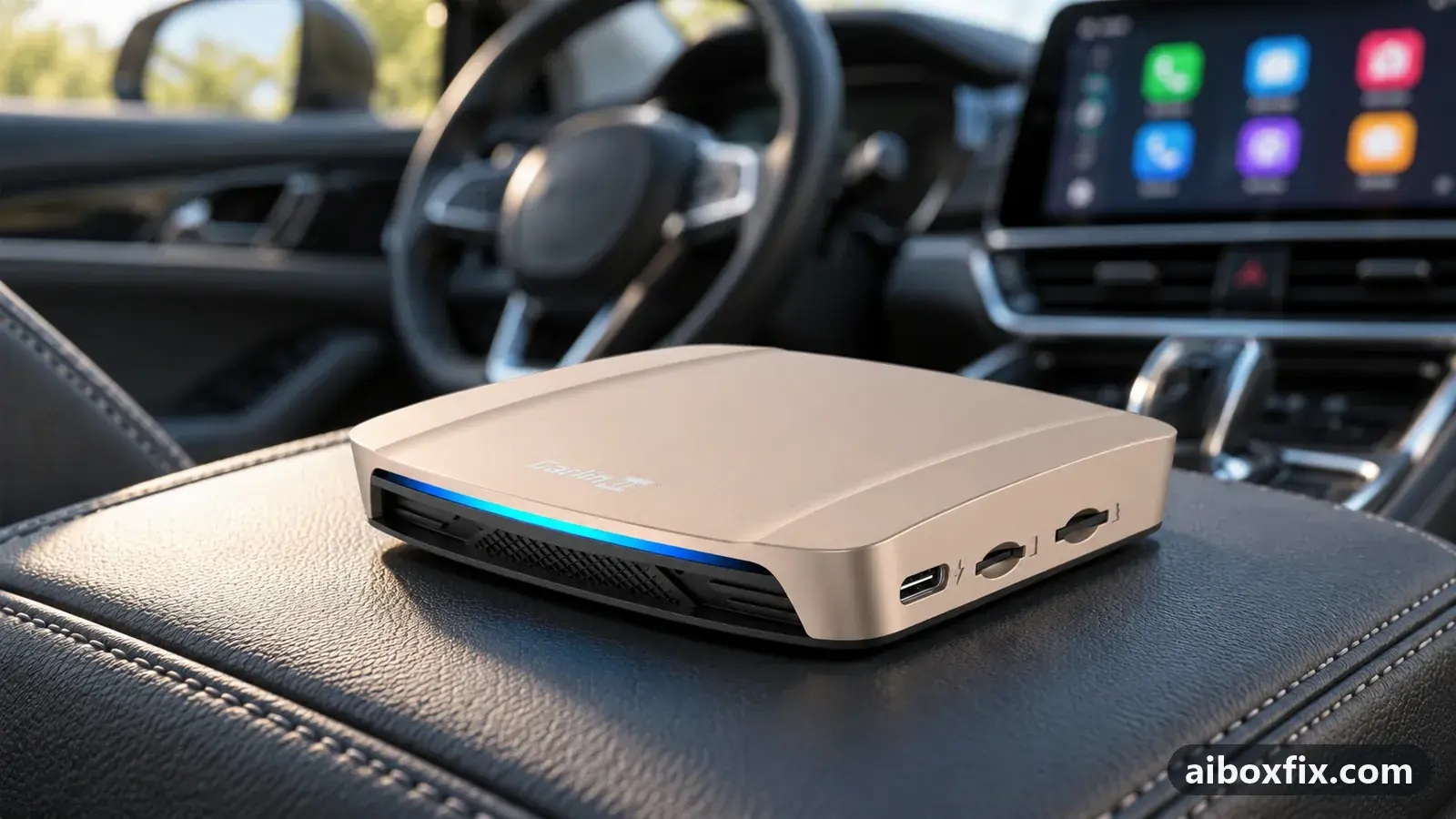
Quick answer
On a Carlinkit TBox, when the CarCar installer from Google Play downloads the launcher but nothing installs, open Downloads in a file manager and tap the file; that worked for four owners. To leave a broken beta, reinstall the stable build through the installer and set the update channel to Stable, as five owners did, losing only their launcher settings.
Before you start
- A Carlinkit TBox with Google Play signed in and a working internet connection
- A file manager on the box (Files by Google or any other)
- Your box model and Android version from Settings → About, to pick the right build
- If you bought a licence: access to the messaging account you bought it with
Time: about 15 minutes. Tools: file manager app on the box.
Applies to
- Devices
- Connection to the car
- CarPlay and Android Auto
- Highest risk on this page
- Low risk
Where CarCar Launcher comes from
CarCar Launcher is installed through the developer’s own installer app, which is on Google Play. The installer looks at your box, offers the builds that fit it and downloads the launcher; updates afterwards come over the air inside the launcher. The developers also publish their account and licence instructions on their account guide. This site does not host or link launcher files.
There are two update channels. Stable gets new versions rarely and late; Beta gets every new version first, bugs included. The installer only ever installs the stable build: you reach the beta from inside the launcher. One of the developers put the choice plainly: the beta is newer and has features stable lacks, and that is the whole difference. Licences are the same on both.
Steps
Install the right build with the CarCar installer
- Low risk
- Time: 5 minutes
- Worked for 3 of 3 reports
- On the box, open Google Play and install the CarCar installer app.
- Open it. It shows a list of CarCar builds for your device.
- Tick the build that matches your box. The first entry is for older Android versions; on a TBox Ultra owners ticked the second line.
- Tap the instruction button and follow it to download and install the launcher.
- Make CarCar the default home app and turn off the stock side bar, as described in stuck on “Loading phone” after installing a launcher.
A TBox Ultra 2 owner installed this way after ticking the second line. Another owner described the installer reading the device and offering two builds, of which the second was the right one. A third, who had asked where to download the launcher at all, was pointed to the installer on Google Play and got it working. The TBox Ultra runs Android 15, which is supported from version 3.2.8 beta onwards; an older build picked from the top of the list installs but will not run.
The CarCar team also publishes a patched version of Carlinkit’s stock firmware. It is not the launcher: one Ultra 2 owner installed it by mistake through the firmware updater and still had no CarCar afterwards.
If nothing installs, open Downloads and tap the file yourself
- Low risk
- Time: 5 minutes
- Worked for 4 of 4 reports
- Run the installer and choose your box so it downloads the launcher file.
- Open a file manager and go to the Downloads folder.
- Tap the CarCar file that the installer downloaded.
- If Android asks, allow the file manager to install unknown apps, then tap Install.
- Open CarCar and set it as the default home app.
- Switch the file manager’s Install unknown apps permission off again; turn it back on only for the next CarCar update.
The Google Play version of the installer downloads the launcher into Downloads and leaves the install to you; it never asks for install permission because it does not install anything. That is why it seems to stall after you pick your box. An owner whose box had been reset to factory settings got the launcher on this way; so did a TBox Ultra owner whose installer went silent after choosing “Ultra” following a firmware update and reset, and whose licence came back on its own afterwards. An owner who runs CarCar on five boxes and a TBox Ultra 2 owner both install it this way every time.
If CarCar installs but never starts, reinstall it with a different package installer
- Low risk
- Time: 10 minutes
- Worked for 1 of 1 report
- Uninstall CarCar Launcher.
- Open the launcher file again from your file manager.
- When Android asks which app should install it, choose a different installer from the one you used last time.
- Install, open CarCar and make it the default home app.
One Carlinkit owner installed CarCar, but it never started: the box showed an endless loading screen at every start, and the install itself took only five seconds. Reinstalling three times the same way changed nothing. The CarCar team found from a log that half of the app was missing after installation, so the launcher crashed looking for its own parts; it was not the cache or the app data. The box offered three package installers, and the owner had picked the first; installing again with the second fixed it, which the team confirmed.
If the installer will not work at all, install the launcher first
- Low risk
- Time: 10 minutes
- Worked for 1 of 1 report
- Get the CarCar launcher file from the developer, through their support or announcement channel.
- Install it from a file manager, as in the step above.
- Open CarCar, then start the installer app from inside it.
- Let the installer bring CarCar up to date.
A TBox Ambient 8/128 owner on Android 13 could not get the installer to download anything for a day; clearing its data did not help. After installing the launcher file first and starting the installer from inside CarCar, the installer worked. Nobody knows why, and another Ambient owner installed with the installer in two minutes, so try the normal route first. The developers confirmed the Ambient needs no root.
Get newer versions by switching to the beta channel
- Low risk
- Time: 3 minutes
- Worked for 1 of 1 report
- Open CarCar’s Settings → CarCar Version.
- Set Update Channel to Beta.
- Tap Check for updates, then Download and Install.
If CarCar says you have the latest version while others talk about a newer one, you are on the stable channel. An owner on 3.3.10 found the beta channel this way and updated. A beta can also carry a fix you are waiting for: on a TBox Ambient, CarCar’s player showed YouTube Music’s Loop and Shuffle as on at every start and Loop did not respond, and the owner reported both working correctly in the 3.4.3 beta. The installer cannot switch channels; after you switch in the launcher, the next beta arrives over the air. Read the release notes first: several betas broke touch or steering-wheel buttons on some boxes, and if everything works, staying on stable costs you nothing.
If an announced update never arrives, install it from the installer
- Low risk
- Time: 5 minutes
- Worked for 2 of 2 reports
- Open the CarCar installer app (install it from Google Play if you removed it).
- Wait until it shows the new version.
- Wait for the install button to become active, then install.
When version 3 came out, two owners on version 2 never saw the update inside the launcher. One installed the installer from the store and downloaded the update through it; the other opened the installer, saw the new version and waited a while for the install button. The developers found and fixed a problem on their update server the same day, so if the update does not show up, also try again a few hours later.
If a beta-to-beta update hangs, go through stable
- Low risk
- Time: 10 minutes
- Worked for 1 of 1 report
- Uninstall the CarCar beta that hangs.
- Install the stable build with the CarCar installer.
- Open Settings → CarCar Version, set the channel to Beta and update.
With the 3.1.0 beta, several owners saw the next update hang on a countdown screen and never load. The developers said the update path in that beta was partly broken and gave this route. One owner removed it, installed the stable build, then updated to the latest beta from settings, and it went in.
Go back from a broken beta to stable
- Low risk
- Time: 15 minutes plus setting up again
- Worked for 5 of 5 reports
- Photograph your CarCar presets, widgets and settings: going back resets them.
- Open the CarCar installer and install the stable build over the beta.
- If it will not install over it, uninstall CarCar and install the stable build again.
- In Settings → CarCar Version, set Update Channel to Stable so the launcher stays on stable builds.
- If the launcher asks for a licence, scan its QR code from the account that bought it.
Switching the channel to Stable on its own changes nothing: one owner did exactly that, then reinstalled from the installer and had stable back. On a TBox UHD 6225, the 4.0.2 beta stopped touch working inside panels; going back to stable fixed it, and another owner with dead touch on the same beta got it working the same way. A third owner’s double-tap zoom in the navigation app came back after reinstalling stable, and a TBox Plus 8 GB owner found apps drawn as on a phone, missing Spotify cover art and a black Spotify window all gone after returning.
Every one of them had to set the launcher up again. One owner who went back to the beta instead found the old settings were still there.
Verify it worked
Open Settings → CarCar Version and check the version number and the channel. Press home: CarCar should open, not the stock launcher. If the launcher shows a licence screen, follow CarCar Launcher licence after a reset; a reinstall does not lose the licence.
Restart the box once in the car. If CarCar does not come up at boot, see launcher not opening at boot; if apps lose their logins when it starts, set the launch delay as in apps log out when the launcher starts.
Undo / rollback
Going back to stable is the only rollback. Android refuses to install an older version over a newer one, and owners found no way back to an earlier beta: when a beta breaks something, you choose between stable and waiting for the next beta. Moving to stable resets your launcher settings, presets and widgets.
Before any firmware update, set the stock launcher as the default home app again; set the stock launcher before updating firmware explains why. You can make CarCar the default again afterwards.
Troubleshooting this guide
The installer spins on “checking version” and the download button never activates. Owners saw this when the developer’s servers had a temporary problem, on phones as well as boxes. Wait and try again later.
Google Play says the installer is not available, or the box has no Google Play. Sign in to Google Play first; one owner found the installer would not work while the box was signed out of Google services.
The store shows “Car Launcher”, not CarCar. Car Launcher is a different paid app from another developer. Owners and the CarCar team have pointed this out to new box owners more than once; look for the CarCar installer instead.
After an update, the Accept button in the launcher’s information window stays grey and you only have a remote. The button becomes active only after the text is scrolled to the end. One owner with a BMW-specific AI box and no touchscreen could not scroll with the remote; he connected the box once to a colleague’s car with a touchscreen, scrolled and accepted there, and the launcher then worked in his own car. The CarCar team promised remote-friendly buttons for that window in version 2.11.7.
The box went black or slow after installing a beta. That is a different problem from the installer; it is covered with the other launcher faults under apps.
You want the beta on a TBox Ultra, but the installer only offers an old build. Install the build it offers for the Ultra, then switch the channel to Beta in CarCar’s settings. More on the model is on the TBox Ultra hub.
What owners said
“The touchscreen in apps stopped working, it doesn't react to a finger press. I had to remove it and install the stable version. Now everything works, but I had to set up CarCar Launcher again, annoying.”
Owner, Aug 2026
“Yesterday on my Ultra 2 I also downloaded the installer from Google Play, chose the Ultra option in it, downloaded, opened ES File Explorer, ran the downloaded CarCar APK from there and installed it.”
Owner, Carlinkit TBox Ultra 2, Feb 2026
“On the first install the head unit (RAM 1500) offered 3 installer options; unfortunately I don't remember their names. I chose the first on the list. Then I chose the second, and everything installed OK.”
Owner, Nov 2024
Quotes are translated where needed and shortened ([…]); names are removed. Full counts are in the evidence table below.
Questions owners ask
Do I lose my licence when I reinstall or go back to stable?
No. Beta and stable use the same licence. After a reinstall the launcher may ask you to scan its QR code again from the account that bought it; see the licence page linked in this guide.
Can I go back to the previous beta instead of stable?
No. Android does not let you install an older version over a newer one, and owners found no way back to an earlier beta. Your choices are the stable build or waiting for the next beta.
Will going back to stable keep my presets and widgets?
No. Owners who moved from beta to stable found every launcher setting reset, even when the stable build installed over the beta without uninstalling. Photograph your presets first.
Do I need root to install CarCar Launcher?
Not on Carlinkit TBox boxes, including the TBox Ultra and the Ambient on Android 13. The developers said the MGears Mstick4 still needs root because its firmware is not signed in a way that allows the launcher.
Related fixes
Did this work for you?
Tell us which fix worked (or didn't), with your box, firmware date and car. Reports are how fixes get confirmed and re-ranked.
Send a reportChangelog
- Last reviewed against new community reports:
- Confirmed by 20 community reports on Carlinkit TBox UHD, Carlinkit TBox Plus, Carlinkit TBox Ultra 2, Carlinkit TBox Ambient.
- Page updated:
"Confirmed" means a community member reported that the fix worked on their unit. We have not tested it on our own hardware. How we verify.
Evidence behind these counts (12 cases)
One row per case: a device, a symptom and a fix, merged from owner reports. An owner counts once per fix. Reports with no outcome yet are not counted. Forum and chat message references are kept on file but not published, to protect owners' privacy; public Reddit and YouTube sources are linked.
| Case | Confirmed on | Result | Source |
|---|---|---|---|
| case-8610 | Carlinkit TBox Ultra 2 | 2 worked | Owner discussion threads, 7 messages |
| case-8611 | Carlinkit TBox Ultra 2 | 4 worked | Owner discussion threads, 13 messages |
| case-8612 | Carlinkit TBox Ambient | 1 worked | Owner discussion threads, 7 messages |
| case-8613 | Model not stated | 1 worked | Owner discussion threads, 7 messages |
| case-8614 | Model not stated | 2 worked | Owner discussion threads, 4 messages |
| case-8615 | Model not stated | 1 worked | Owner discussion threads, 6 messages |
| case-8616 | Carlinkit TBox UHD; Carlinkit TBox Plus | 5 worked | Owner discussion threads, 20 messages |
| case-9720 | Model not stated | 1 worked | Owner discussion threads, 3 messages |
| case-9721 | Model not stated | 0 worked | Owner discussion threads, 4 messages |
| case-9722 | Model not stated | 1 worked | Owner discussion threads, 7 messages |
| case-9723 | Model not stated | 1 worked | Owner discussion threads, 5 messages |
| case-9724 | Carlinkit TBox Ambient | 1 worked | Owner discussion threads, 3 messages |